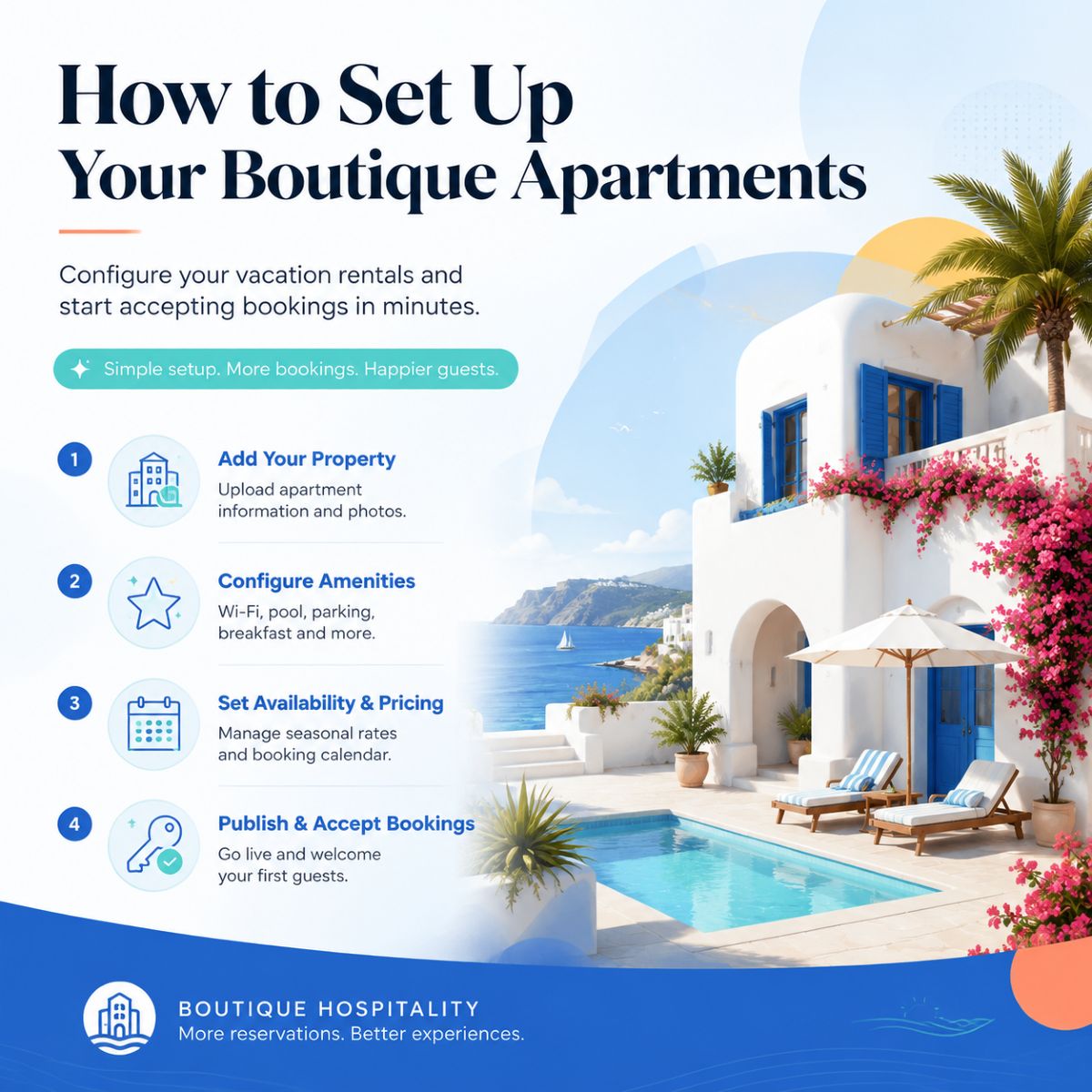
How to setup your appartments
Simple practical guide
28 July 2026
Apartment Booking — Setup Guide (3 Units)
Let guests book one of your 3 apartments for a multi-night stay. Each apartment is set up as its own independent Service + Resource pair, so each has its own price, size, description, and its own separate calendar — booking Apartment 1 has zero effect on the availability of Apartment 2 or 3.
Where to find it: Storefront home → + (Add Content), or Dashboard → Bookings tab once you have your first item.
-
Add each apartment as its own Resource
+ (Add Content) → Resources → +. Repeat 3 times.- Name — e.g. "Apartment 1", "Apartment 2", "Apartment 3"
- Location — optional, e.g. floor/address
- Capacity — max guests for that specific apartment (can differ per unit, since sizes differ)
- Quantity — 1 for each — every apartment is a single, specific physical unit, not a pool of interchangeable ones (unlike the drone fleet example, where quantity=5 made sense)
-
Create one Service per apartment
Same + (Add Content) → Service → +. Repeat 3 times — this is what actually gives each apartment its own price, size, and benefits.- Name — e.g. "Apartment 1 — Seaview Studio"
- Description / Photo — this is where size and benefits live today (e.g. "45m², balcony, sea view, washer/dryer") — there's no dedicated "size" field, just description text
- Booking Mode — Multi-day Range (built for exactly this: apartments, car rentals)
- Pricing Mode — Per Night — set each apartment's own nightly rate here, so the 3 can genuinely differ in price; total is calculated automatically as nights × rate
- Requires Resource — on, then select only that apartment's resource (this is what keeps the 3 calendars independent)
- Max Party Size — set to match that apartment's guest capacity
- Requires Provider — leave off, not relevant here
- Active — on
-
Test it
Open one apartment's service page, tap Book. Since this is Range mode, tap a start date, then a later date to set the end — the calendar highlights the span. Confirm details and submit. Then check a different apartment's calendar and confirm those dates are still fully open — that's the per-resource independence working. -
Manage bookings
Dashboard → Bookings — the calendar, day filter, and stats all work the same regardless of booking mode, so your 3 apartments' reservations all show up together, with each booking's row telling you which apartment (resource) it's for.