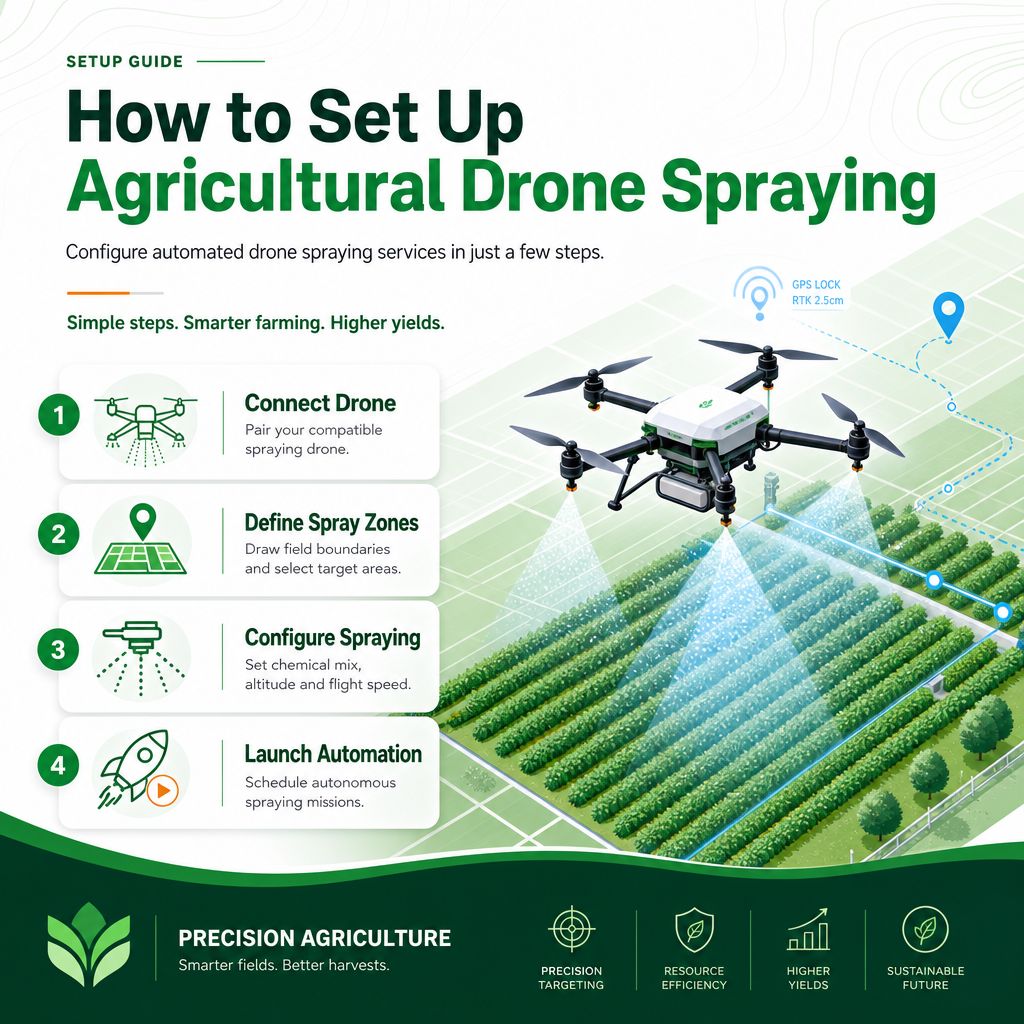
How to setup a drone spraying service
Simple practical guide
28 July 2026
Drone Pesticide Spraying — Setup Guide
Let farmers book a time slot for a drone spraying session. Your fleet of 5 drones is treated as one resource type with 5 interchangeable units — the system automatically tracks how many are free at any given time and stops taking bookings once all 5 are in use for that slot.
Where to find it: Dashboard → Bookings tab (or the + Add Content button on your storefront home screen before you have your first item).
-
Set your Business Hours
Home tab → tap your store's name in the switcher bar → Edit Store. Enter the hours you're able to run spraying sessions (e.g. daylight hours only, since spraying is usually done at dawn/dusk for wind and bee safety — worth reflecting that in your actual hours). -
Add "Spray Drone" as a Resource
Storefront home → + (Add Content) → Resources → +.- Name — e.g. "Spray Drone"
- Location — optional, e.g. "Depot" or leave blank
- Capacity — leave at 1 (this field is about people-per-unit, e.g. diners at a table — not meaningful for a drone, so it doesn't need to be raised)
- Quantity — 5 (this is the important one: it tells the system you have 5 interchangeable drones, so up to 5 farmers can book the same time slot before it's fully booked)
-
Create the "Drone Pesticide Spraying" Service
Same + (Add Content) button → Service → +.- Name — e.g. "Drone Pesticide Spraying"
- Description / Photo — optional, e.g. field coverage per session, chemicals used
- Booking Mode — Slot
- Duration — however long one session actually takes, e.g. 60 minutes
- Pricing Mode — Quote After Booking is usually the realistic choice here, since spraying is normally priced by field size/hectares, not a flat fee or pure time — you review the request and set a price before confirming. (Use Flat or Per Hour instead if you'd rather charge a fixed rate regardless of field size.)
- Requires Resource — on, then select "Spray Drone"
- Requires Provider — turn on only if you want to assign a specific licensed drone operator/pilot to each booking; leave off if any available operator handles it. If on, add your pilots as providers here (checklist further down the form) — farmers will then get a "choose your team member" filter on the booking calendar, defaulting to "Any."
- Max Party Size — leave blank; this field means "people per booking," which doesn't apply to a spraying job
- Buffer Minutes — turnaround time between sessions (e.g. drone battery swap/reload), so back-to-back bookings aren't scheduled with zero gap
- Active — on
-
Test it
Open the service from your storefront, tap Book. Pick a date, then a time slot — if you enabled a pilot filter, you'll see the funnel icon to pick one or leave "Any." Confirm the booking details and submit. -
Manage bookings
Dashboard → Bookings — the calendar shows which days have sessions booked, tap a day to see just that day's list, and once a farmer's drone actually goes out, open the booking and tap Mark Completed to close it out (or Cancel if it falls through).
One real constraint worth knowing: a single booking uses exactly one drone from the pool of 5 — there's no way for a farmer to request "2 drones at once" in one reservation today. If a job genuinely needs multiple drones simultaneously, the workaround is booking multiple separate slots at the same time. Not something to solve now, just flagging it in case a large-field customer asks.